Wednesday, January 8, 2020

RED HAT LINUX ESSENTIALS INTERVIEW QUESTIONS & ANSWERS


  1. RED HAT LINUX ESSENTIALS INTERVIEW QUESTIONS & ANSWERS


  2. Answer :
    A Linux server is a high-powered variant of the Linux open source operating system that's designed to handle the more demanding needs of business applications such as network and system administration, database management and Web services.
  3. Answer :
    Red Hat Enterprise Linux (RHEL) is a distribution of the Linux operating system developed for the business market. RHEL was formerly known as Red Hat Linux Advanced Server.
  4. Answer :
    echo $SHELL.
  5. Answer :
    LVM snapshots allow the administrator to create a new block device which presents an exact copy of a logical volume, frozen at some point in time.
  6. Answer :
    The Volume Group is the highest level abstraction used within the LVM. It gathers together a collection of Logical Volumes and Physical Volumes into one administrative unit.
  7. Answer :
    gpasswd -r.
  8. Answer :
    Each logical volume is split into chunks of data, known as logical extents. The extent size is the same for all logical volumes in the volume group.
  9. Answer :
    Each physical volume is divided chunks of data, known as physical extents; these extents have the same size as the logical extents for the volume group.
  10. Answer :
    1. LVM1 and LVM2 are the versions of LVM.
    2. LVM2 uses device mapper driver contained in 2.6 kernel version.
    3. LVM 1 was included in the 2.4 series kernels.
  11. Answer :
    RAID provides redundancy but LVM doesn’t provide Redundancy.
  12. Answer :
    repquota.
  13. Answer :
    As a process executes it changes state according to its circumstances. Unix processes have the following states:
    1. Running : The process is either running or it is ready to run .
    2. Waiting : The process is waiting for an event or for a resource.
    3. Stopped : The process has been stopped, usually by receiving a signal.
    4. Zombie : The process is dead but have not been removed from the process table.

  14. Question 13. How We Will Check Free Space On Drive /dev/sda With Parted Command?
  15. Answer :
    #parted /dev/sda
    print.
  16. Answer :
    Create physical volumes by “pvcreate” command :
    #pvcreate /dev/sda2
    Add physical volume to volume group by “vgcreate” command :
    #vgcreate VLG0 /dev/sda2
    Create logical volume from volume group by “lvcreate” command :
    #lvcreate -L 1G -n LVM1 VLG0
    Now create file system on /dev/sda2 partition by “mke2fs” command :
    #mke2fs -j /dev/VLG0/LVM1
  17. Answer :
    LVM stands for Logical Volume Manager. LVM, is a storage management solution that allows administrators to divide hard drive space into physical volumes (PV), which can then be combined into logical volume groups (VG), which are then divided into logical volumes (LV) on which the filesystem and mount point are created.
  18. Answer :
    All UNIX files have its description stored in a structure called 'inode'. The inode contains info about the file-size, its location, time of last access, time of last modification, permission and so on. Directories are also represented as files and have an associated inode.
  19. Answer :
    • View the existing partition table.
    • Add partitions from free space or additional hard drives.
    • Change the size of existing partitions.
  20. Answer :
    1. Firstly disable the swap file by “swapoff” command.
    2. Remove Swap file entry from /etc/fstab file.
    3. Now remove the swap file by “rm” command.

  21. Question 19. How Do You Identify The Ip Address Assigned To The Box?
  22. Answer :
    The ipconfig command tells you the IP for the computer.
  23. Answer :
    Open a Red Had shell command line and type /etc/redhat-release to identify the release version for Red Hat.

  24. Question 21. Which Layer In The Osi Model Is Responsible For The User’s Application When Working With An Application Over The Network?
  25. Answer :
    Layer 7 is the layer responsible for application support including support for user passwords and file sharing.
  26. Answer :
    Open the Red Hat Linux shell command line and use the mv command. The mv command takes the path to the original file and the path to the newly named file in the parameters. If you don’t specify the parameters, the mv command will ask you for them.
  27. Answer :
    Go to the shell prompt and type mysql. Linux looks up the information contained in /var/mysql/mysql.sock and connects to the port listed in the sock file. If the port is blocked or mysql isn’t installed on the system, Red Hat Linux returns an error.
  28. Answer :
    First, you need to install Apache, and Apache sets a default directory for public HTML files. The standard directory is /var/www/html.
  29. Question 25. What Type Of Remote Software Can You Use To Encrypt Communication But Control Your Server?
  30. Answer :
    SSH is a remote desktop software that lets you remotely control the Red Hat server using a command line but also encrypts the information across the Internet. SSH uses port 22, so you must open this port when you set up Red Hat.
  31. Answer :
    Most web servers run on port 80, and Apache defaults to port 80 when you install the software. You can use an alternative port, but this forces the user to type a port into the browser when they access the website. The other popular port for web applications is port 8080.

  32. Question 27. What Is The Total Number Of Primary Partitions You Can Have On One Drive In Linux Red Hat?
  33. Answer :
    you can have four primary partitions in Linux. This includes Red Hat and any other operating system.
  34. Answer :
    There are three commands you can use to add a user. The three commands are useradd, adduser, and linuxconf.
  35. Answer :
    Red Hat Network : A systems management platform providing lifecycle management of the operating system and applications.
    1. Installing and provisioning new systems.
    2. Updating systems.
    3. Managing configuration files.
    4. Monitoring performance.
    Redeploying systems for a new purpose "Hosted" and "Satellite" deployment architectures.
  36. Answer :
    A user who can use effectively employ Red HatEnterprise Linux to customize his or her operating environment as well as accomplish common commandline tasks and desktop productivity roles.

Red Hat Linux System Administration Interview Questions And Answers

Red Hat Linux System Administration Interview Questions And Answers

  1. Answer :
    Using uptime command we can determine how long a linux box has been running , also uptime can be viewed by the top & w command.
  2. Answer :
    Use the command cat /etc/redhat-release , output of this command will tell you the redhat version.
  3. Answer :
    rpm and yum command are used to install packages in redhat linux and CentOS.
  4. Answer :
    Using ‘ifconfig’ & ‘ip address’ command we can determine the ip address of LAN Card.
  5. Answer :
    On typing the hostname command on terminal we can determine the hostname of a linux server.
  6. Answer :
    Using ‘route -n’ command we can determine the default gateway in linux.
  7. Answer :
    ‘uname -r’
  8. Answer :
    ‘who -r’ and ‘runlevel’ , both of these command are used to find current run level.
  9. Answer :
    Initrd stands for initial ram disk , which contains the temporary root filesystem and neccessary modules which helps in mounting the real root filesystem in read mode only.
  10. Answer :
    Bootloader is a program that boots the operating system and decides from which kernel OS will boot.
  11. Answer :
    ‘ls -a’ <Folder_Name>
  12. Answer :
    Soft link is a method to create short cuts in linux. It is similar to windows short cut feature.
  13. Question 13. How To Create A Blank File In Linux From Command Line ?
  14. Answer :
    Using the command ‘touch <file-name>’
  15. Answer :
    Run level 2 is the multi-user mode without networking.
  16. Answer :
    Because One can customize the existing code and can redistribute it.
  17. Answer :
    Using the Command ‘lsmod’ we can see the installed kernel modules.
  18. Answer :
    Default uid & gid of root user is 0.
  19. Answer :
    ‘passwd <User-Name>’
  20. Answer :
    Any program in execution is called a process.
  21. Answer :
    ‘init’ is the first process in linux which is started by kernel and whose pid is 1.
  22. Question 21. What Is The Difference Between Umask And Ulimit ?Answer :
  23. umask stands for ‘User file creation mask’, which determines the settings of a mask that controls which file permissions are set for files and directories when they are created. While ulimit is a linux built in command which provides control over the resources available to the shell and/or to processes started by it.
    You can limit user to specific range by editing /etc/security/limits.conf at the same time system wide settings can be updated in /etc/sysctl.conf
  24. Answer :
    A run level is a state of init and the whole system that defines what system services are operating and they are identified by numbers.There are 7 different run levels present (run level 0-6) in Linux system for different purpose. The descriptions are given below.
    0: Halt System (To shutdown the system)
    1: Single user mode
    2: Basic multi user mode without NFS
    3: Full multi user mode (text based)
    4: unused
    5: Multi user mode with Graphical User Interface
    6: Reboot System
    To change the run level, edit the file “/etc/inittab” and change initdefault entry ( id:5:initdefault:). If we want to change the run level on the fly, it can be done using ‘init’ command.
    For example: when we type ‘init 3′ in the commandline , this will move the system from current runlevel to runlevl 3. Current level can be listed by typing the command ‘who -r’.
  25. Question 23. What Is The Functionality Of A Puppet Server?Answer :
  26. Puppet is an open-source and enterprise application for configuration management toll in UNIX like operating system. Puppet is an IT automation software used to push configuration to its clients (puppet agents) using code. Puppet code can do a variety of tasks from installing new software, to check file permissions, or updating user accounts and lots of other tasks.
  27. Answer :
    SELinux is an acronym for Security-enhanced Linux. It is an access control implementation and security feature for the Linux kernel. It is designed to protect the server against misconfigurations and/or compromised daemons. It put limits and instructs server daemons or programs what files they can access and what actions they can take by defining a security policy.
  28. Question 25. What Is Crontab And Explain The Fields In A Crontab ?
  29. Answer :
    The cron is a deamon that executes commands at specific dates and times in linux. You can use this to schedule activities, either as one-time events or as recurring tasks. Crontab is the program used to install, deinstall or list the tables used to drive the cron daemon in a server. Each user can have their own crontab, and though these are files in /var/spool/cron/crontabs, they are not intended to be edited directly. Here are few of the command line options for crontab.
    crontab -e Edit your crontab file.
    crontab -l Show your crontab file.
    crontab -r Remove your crontab file.
    Traditional cron format consists of six fields separated by white spaces:
    The format is explained in detail below.
    * * * * * *
    | | | | | |
    | | | | | +– Year (range: 1900-3000)
    | | | | +—- Day of the Week (range: 1-7, 1 standing for Monday)
    | | | +—— Month of the Year (range: 1-12)
    | | +——– Day of the Month (range: 1-31)
    | +———- Hour (range: 0-23)
    +———— Minute (range: 0-59)
  30. Answer :
    An inode is a data structure on a filesystem on Linux and other Unix-like operating systems that stores all the information about a file except its name and its actual data. When a file is created, it is assigned both a name and an inode number, which is an integer that is unique within the filesystem. Both the file names and their corresponding inode numbers are stored as entries in the directory that appears to the user to contain the files. The concept of inodes is particularly important to the recovery of damaged filesystems. When parts of the inode are lost, they appear in the lost+found directory within the partition in which they once existed.
    The following will show the name of each object in the current directory together with its inode number:
    # ls -i
    The avialble number inodes in a filesystem can be found using the below command :
    # df -i
    The other way we can get the inode details of a file by using the stat commmand.
    Usage : # stat
    Example :
    -sh-4.1$ stat note.txt
    File: `note.txt'
    Size: 4 Blocks: 8 IO Block: 4096 regular file
    Device: fd05h/64773d Inode: 8655235 Links: 1
    Access: (0644/-rw-r--r--) Uid: (69548/nixuser) Gid: (25000/ UNKNOWN)
    Access: 2014-06-29 15:27:56.299214865 +0000
    Modify: 2014-06-29 15:28:28.027093254 +0000
    Change: 2014-06-29 15:28:28.027093254 +0000

Friday, October 4, 2019

Command-Line Printer Administration

Command-Line Printer Administration

Introduction

Destinations are individual printers and classes (pools) of printers. Printers use a description file with one or more driver ("filter") programs that communicate with the printer through a "backend" program. CUPS currently uses PPD (PostScript Printer Description) files to describe the printer and driver programs needed, some of which come with CUPS while others come with your operating system or Linux distribution. Backends are specified using a URI (Universal Resource Identifier) where the URI scheme is the backend name, e.g., "ipp://11.22.33.44/ipp/print" specifies the "ipp" backend - like PPD files, some backends come with CUPS while others come with your operating system.
Classes are associated with one or more printers and are typically used to distribute print jobs amongst a group of printers or provide redundancy or high availability when printing. Print jobs sent to a class are forwarded to the next available printer in the class.
The lpadmin(8) program is used to add, modify, or delete destinations, while the lpinfo(8) command is used to list the available printer drivers and backends. The cupsctl(8) program is used to manage the printing system as a whole, including things like debug logging and printer sharing. The CUPS web interface ("http://localhost:631" or "https://servername:631") can also be used, and most operating systems provide their own GUI administration tools.

Managing Printers

The lpadmin command is used to create, modify, or delete a printer. The -p option specifies a printer to create or modify:
lpadmin -p printername ...
The lpadmin accepts several additional options after -p printername when adding or modifying a printer:
-D "description"
Sets the description of the printer which is often shown instead of the printer name, for example "HP LaserJet".
-E
Enables the printer and accepts new print jobs.
-L "location"
Sets the location of the printer, for example "Conference Room".
-m model
Sets the printer driver using the model name.
-o option=value
Sets the named option.
-v device-uri
Sets the URI for the printer.
The -x option deletes the named printer:
lpadmin -x printername

Printer Drivers and PPDs

The -m option to lpadmin specifies the driver ("model") to use for the printer. You can run the lpinfo -m command to list all of the available drivers ("models") on your system:
lpinfo -m
Each line contains the driver name followed by its description, for example:
drv:///sample.drv/dymo.ppd Dymo Label Printer
drv:///sample.drv/epson9.ppd Epson 9-Pin Series
drv:///sample.drv/epson24.ppd Epson 24-Pin Series
drv:///sample.drv/generpcl.ppd Generic PCL Laser Printer
drv:///sample.drv/generic.ppd Generic PostScript Printer
drv:///sample.drv/deskjet.ppd HP DeskJet Series
drv:///sample.drv/laserjet.ppd HP LaserJet Series PCL 4/5
drv:///sample.drv/intelbar.ppd Intellitech IntelliBar Label Printer, 2.1
drv:///sample.drv/okidata9.ppd Oki 9-Pin Series
drv:///sample.drv/okidat24.ppd Oki 24-Pin Series
drv:///sample.drv/zebracpl.ppd Zebra CPCL Label Printer
drv:///sample.drv/zebraep1.ppd Zebra EPL1 Label Printer
drv:///sample.drv/zebraep2.ppd Zebra EPL2 Label Printer
drv:///sample.drv/zebra.ppd Zebra ZPL Label Printer
everywhere IPP Everywhere
The everywhere driver is used for nearly all modern networks printers sold since about 2009. For example, the following command creates a destination for a printer at IP address 11.22.33.44:
lpadmin -p printername -E -v ipp://11.22.33.44/ipp/print -m everywhere
The CUPS sample drivers (the "drv:///sample.drv/..." lines above) can be used for "legacy" printers. For example, the following command creates a destination for a HP LaserJet printer at IP address 11.22.33.44:
lpadmin -p printername -E -v socket://11.22.33.44 -m drv:///sample.drv/laserjet.ppd
Note: The CUPS sample drivers are designed to provide basic printing capabilities for the broadest range of printers possible, but generally do not exercise the full potential of the printers or CUPS. Other drivers (including the everywhere driver) provide greater printing capabilities and better print quality.

Device URIs (Backends)

CUPS comes with several standard backends that communicate with printers:
  1. dnssd: The Bonjour (DNS-SD) protocol.
  2. ipp: The Internet Printing Protocol (IPP) with optional encryption.
  3. ipps: The Internet Printing Protocol with mandatory encryption.
  4. lpd: The Line Printer Daemon protocol.
  5. socket: The AppSocket (JetDirect) protocol.
  6. usb: The Universal Serial Bus (USB) printer class.
Run the lpinfo -v command to list the available backends and printers:
lpinfo -v
Each line contains the backend "class" followed by the backend name or a full printer device URI, for example:
network lpd
network ipps
network ipp
network socket
network dnssd://Acme%20Laser%20Pro._ipp._tcp.local./?uuid=545253fb-1cb7-4d8d-98ed-ab6cd607cea7
network dnssd://Bar99._printer.tcp.local./?uuid=f9efff58-9086-4c95-accb-81dee876a475
network dnssd://Example%20EX-42._ipps._tcp.local./?uuid=4a0c67ad-2824-4ddf-9115-7d4226c5fe65
network dnssd://Foo%20Fighter-1969._pdl-datastream._tcp.local./?uuid=4e216bea-c3de-4f65-a710-c99e11c80d2b
direct usb://ZP/LazerJet%20MFP?serial=42
The network class of backends is used for all network protocols. The Using Network Printers help document describes how to use the standard CUPS network backends. The direct class of backends is used for directly-connected printers such as USB and Bluetooth. Because these backends use a system-specific identifier, you should only use the reported device URIs.
Once you know the correct URI for the printer, set it using the lpadmin command's -v option:
lpadmin -p printername -v device-uri

Printer Options

The lpadmin command allows you to set various options for a printer:
-o cupsIPPSupplies=false
Turns off IPP supply level reporting for a printer.
-o cupsSNMPSupplies=false
Turns off SNMP supply level reporting for a printer.
-o name=value
Sets the default value for the named PPD option. For example, -o PageSize=Legal sets the default page size to US Legal.
-o printer-error-policy=name
Sets the policy for errors such as printers that cannot be found or accessed, don't support the format being printed, fail during submission of the print data, or cause one or more filters to crash:
abort-job
Aborts the job on error.
retry-job
Retries the job at a future time.
retry-current-job
Retries the current job immediately.
stop-printer
Stops the printer on error.
-o printer-is-shared=true/false
Enables/disables per-printer sharing. See the section on Printer Sharing for more information.
-o printer-op-policy=name
Sets the operation policy associated with the printer. See the Managing Operation Policies help document for more information.
-u allow:{user|@group}{,user|,@group}*
-u allow:all
-u deny:{user|@group}{,user|,@group}*
-u deny:none
Sets user-level access control for the printer. The allow: list defines a whitelist of users and groups while the deny: list defines a blacklist of users and groups.

Printer Sharing

CUPS supports sharing of printers with other computers and mobile devices. Two cupsctl options control the general printer sharing features:
--share-printers
Enables sharing of printers with other computers and mobile devices on your local network.
--remote-any
Expands printer sharing to any network that can reach your server.
Once you have enabled printer sharing, you then must select which printers will be shared using the lpadmin command and the -o printer-is-shared=true option.
For example, to share two printers ("foo" and "bar") on the local network, run the following commands:
cupsctl --share-printers
lpadmin -p foo -o printer-is-shared=true
lpadmin -p bar -o printer-is-shared=true

Managing Classes

The lpadmin command is used to create, modify, or delete a class. The -c option specifies a class to create or modify and is combined with the -p option:
lpadmin -p printername -c classname
The -r option specifies that the named printer is removed from the class:
lpadmin -p printername -r classname
The -x option deletes the named class:
lpadmin -x classname

Debug Logging and Troubleshooting

The printing system log files track the activity of the scheduler, printer drivers, and backends. If problems occur and the log files do not provide sufficient details to diagnose the problem, you can enable debug logging using the cupsctl command:
cupsctl --debug-logging
To disable debug logging, run the same command with the --no-debug-logging option:

cupsctl --no-debug-logging

How to Setup CUPS Printer Admin Web GUI for Remote Access

How to Setup CUPS Printer Admin Web GUI for Remote Access

There are two ways to manage your printers on Linux environment:
  1. First, from command line, using lpadmin command, you can configure your printer and manage the print queues
  2. Second, from web UI, you can manage your printers interactively

In one of our previous tutorial, we discussed about how to add new printer, change the printer settings, and manipulate print queues using 12 examples of lpadmin command on Linux.
In this quick tutorial, we’ll show you how you can allow web UI access for an existing CUPS installation.

Manage Printer from Web GUI

All the printer configurations & classes that we setup using lpadmin command line, can also be managed from your browser from the following location:
https://hostname-or-ipaddress:631/admin
To configure this URL, you must do the following changes on your /etc/cups/cupsd.conf
Modify the cupsd.conf file, and do the following two changes:
  1. Comment-out this line: Listen localhost:631
  2. Add this line Port 631
  3. # vi /etc/cups/cupsd.conf .. #Listen localhost:631 Port 631 Listen /var/run/cups/cups.sock ..

Allow Local Subnet to Access Printer Web GUI

Add the local desktop IP address or the subnet from which you want to access the printer URL, it should look like below in /etc/cups/cupsd.conf
# vi /etc/cups/cupsd.conf
..
# Restrict access to the server...
<Location />
  Order allow,deny
  Allow 127.0.0.2
  Allow your-desktop-client-ip-or-subnet
</Location>
..
Note: In the above, change the “your-desktop-client-ip-or-subnet” to the ip-address of your desktop client. Instead of ip-address, you can also specify the subnet here.

Restart the CUPS Service

After making the above changes, restart the CUPS service as shown below.
# service cups restart
Shutting down cupsd    done
Starting cupsd         done

CUPS Web UI for Remote Access

After the above changes, you should be able to access the printer from Web URL as shown below:
https://{your-ip-address}:631/admin
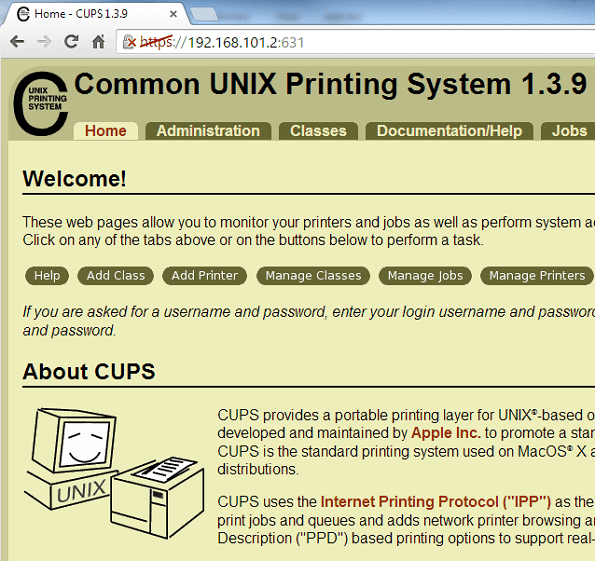
CUPS Admin Home Page
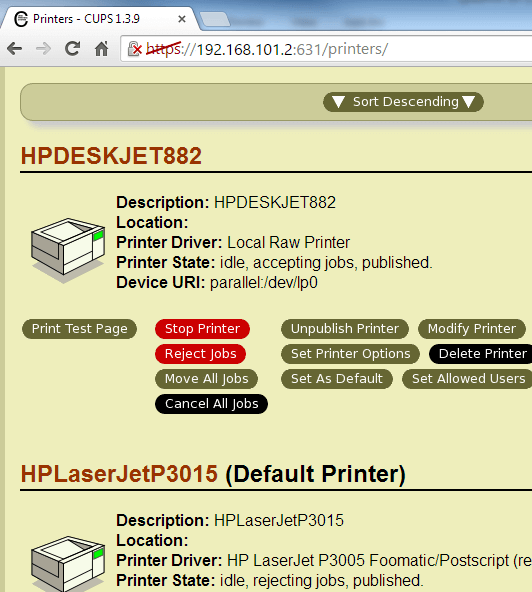
The following displays all the printers that are connected to your Linux system.
CUPS Printer List

Shared Printer Configuration

You can also enable or disable browsing support in your CUPS.
When you enable the browsing, then this will display the shared printers from your local network.
Add the following entries to your cupsd.conf file if you want Browsing to be turned on.
# vi /etc/cups/cupsd.conf
..
Browsing On
BrowseOrder allow,deny
BrowseAllow all
BrowseAddress your-desktop-client-ip-or-subnet
..
Note: Change the your-desktop-client-ip-or-subnet to your ip-address accordingly.
When you turn-off browsing, then polling will be enabled automatically. In this case, you’ll not be able to view all the shared printers from your local network. So, you have to poll for it manually.
# vi /etc/cups/cupsd.conf
..
Browsing Off

  DAILY CHECKLIST Oracle Database instance is running or not select name,open_mode from V$database; Note: Check the Oracle databases are ru...